Never Lose a File Again: Here’s How You Can Use Windows 11 Search Like a Pro
Administrator on 23 December, 2022 | Comments Off on Never Lose a File Again: Here’s How You Can Use Windows 11 Search Like a Pro
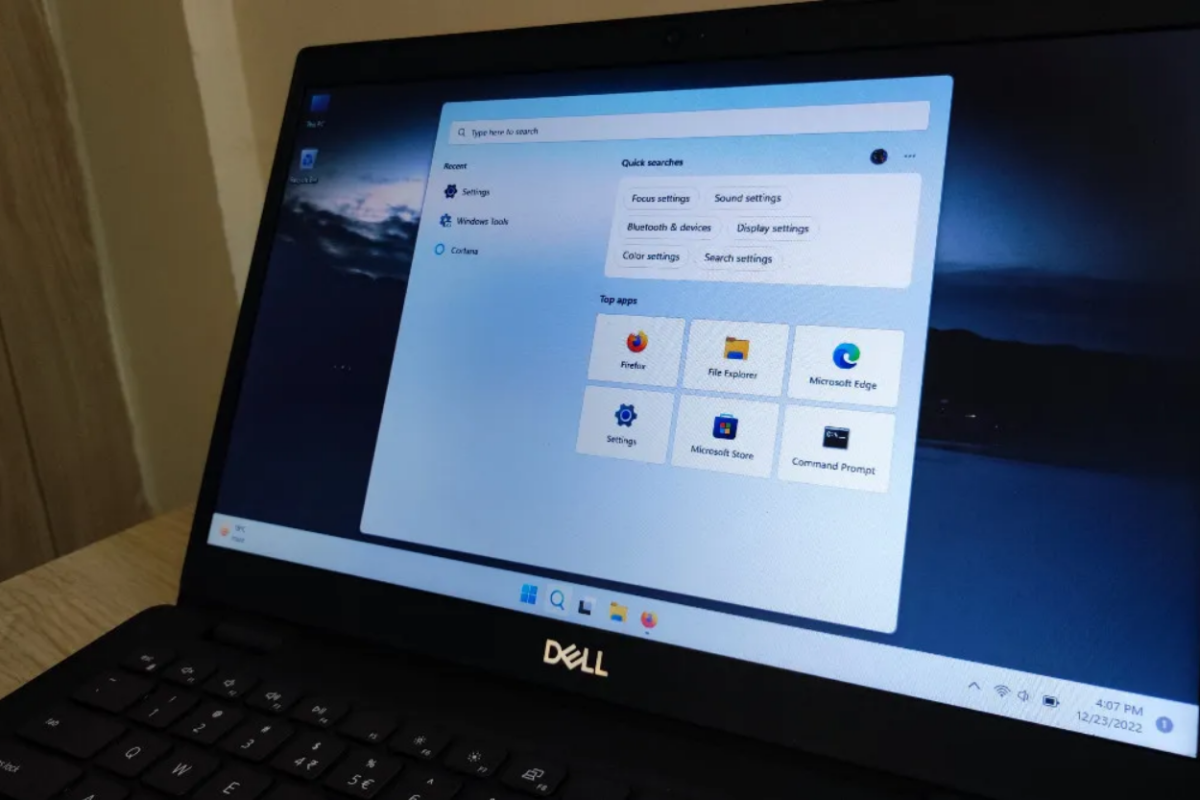
Optimizing Windows Search settings and making it work for you can significantly enhance your productivity. As the tool has evolved over the years, it has become more versatile, offering faster access to documents, applications, settings, and even cloud-based files. While many users rely on basic keyword searches, Windows 11 includes several features that can make locating files considerably more efficient when configured correctly.
One of the first settings worth reviewing is the search indexing option. Windows builds an index of files stored on the computer, allowing search results to appear almost instantly. Users can choose between the default “Classic” indexing mode, which focuses on common folders such as Documents, Pictures, and Desktop, or “Enhanced” indexing, which scans the entire system for files. Although Enhanced mode requires additional system resources during the initial indexing process, it provides much broader search coverage for users who store files across multiple drives or custom folders.
Customizing indexed locations is another effective way to improve search accuracy. Instead of allowing Windows to scan unnecessary directories, users can include only the folders they regularly access while excluding temporary storage, software directories, or archives that rarely need searching. This not only speeds up indexing but also reduces the number of irrelevant search results. Microsoft also allows users to specify whether file contents should be indexed in addition to filenames, making it possible to search for words contained inside supported document formats.
Windows Search is also integrated directly into File Explorer. Rather than manually browsing through nested folders, users can search within a specific directory or across an entire drive. Search filters make it easier to narrow results by document type, modification date, file size, or other metadata. These options are particularly useful for professionals managing large collections of reports, presentations, spreadsheets, and multimedia files.
Cloud integration further extends the capabilities of Windows Search. When signed into a Microsoft account, users can search files stored locally as well as those synchronized through OneDrive without opening separate applications. This unified approach simplifies access to documents regardless of whether they are stored on the device or in cloud storage, supporting seamless workflows across multiple computers.
Keyboard shortcuts also contribute to faster navigation. Pressing the Windows key and immediately typing a filename, application, or setting launches a search without opening File Explorer first. Users can quickly locate installed software, recently accessed documents, or system settings by entering only part of a name, reducing the time spent navigating menus.
Search performance can occasionally decline if the index becomes outdated or corrupted. Windows includes built-in troubleshooting tools that allow users to rebuild the search index and verify indexed locations. Rebuilding the index may take some time depending on the number of files stored on the device, but it often restores faster and more accurate search results. Microsoft also recommends reviewing privacy and search settings periodically to ensure important folders remain indexed while unnecessary locations are excluded.
By taking advantage of indexing options, search filters, File Explorer integration, and cloud synchronization, Windows 11 Search becomes more than a simple lookup tool. Properly configured, it enables users to locate files, applications, and settings within seconds, helping streamline daily workflows and reducing the time spent searching through folders manually.